
Buying a Laptop for the First Time: A Complete Walkthrough from Specs to Setup

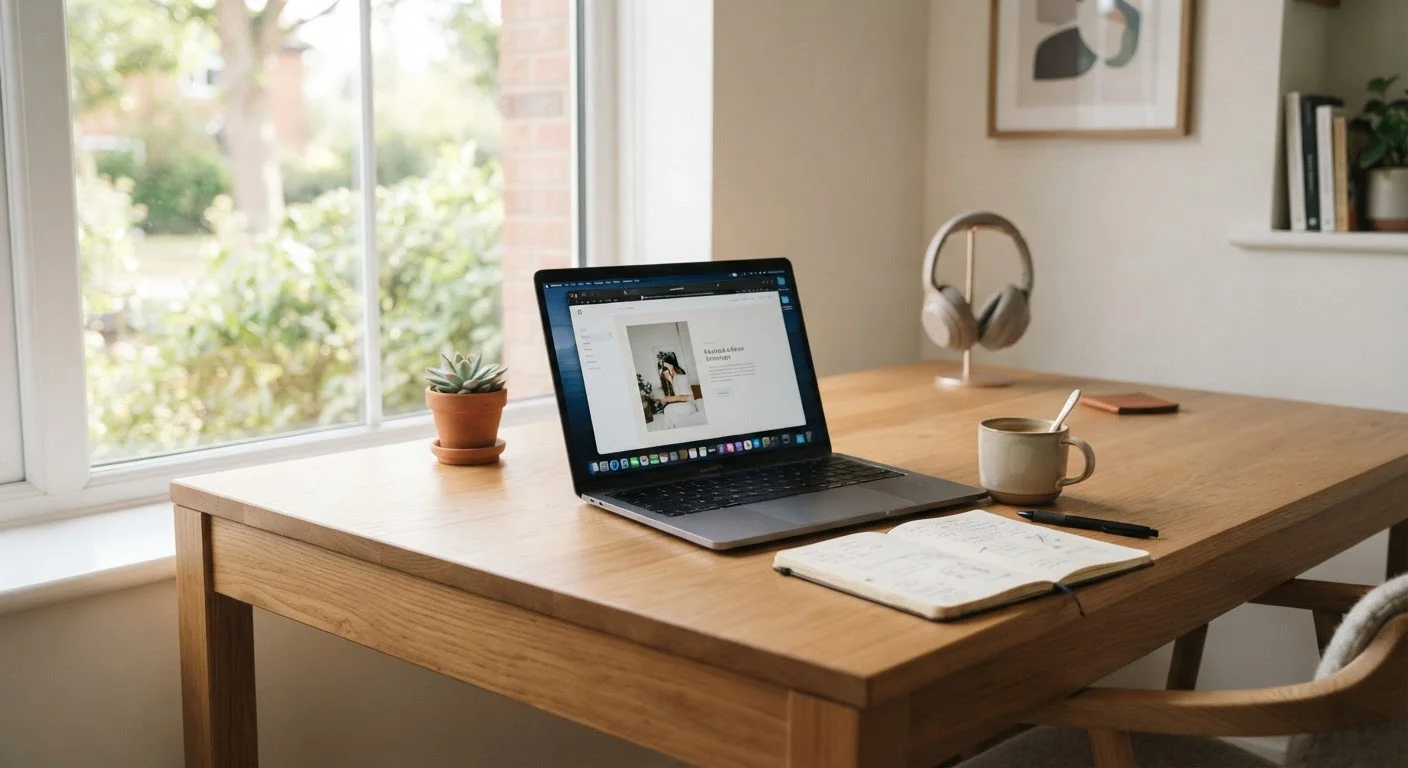
Photo: FaqExplorer.net | Informative Website editorial
Key Takeaways
- Define how you'll use the laptop before comparing any technical specifications.
- RAM and storage type matter more for everyday performance than raw processor speed.
- Your operating system choice shapes the entire software and support experience.
- Screen size and battery capacity are critical for portable or travel use.
- A proper first-time setup protects your privacy and keeps the device running smoothly.
Start With Your Use Case, Not the Specs
The single most common mistake first-time laptop buyers make is opening a retailer page and getting lost in numbers - gigahertz, gigabytes, cores - before they've answered one foundational question: what will this laptop actually do for me?
Your intended use shapes every specification that matters. A college student writing papers and attending video calls needs something very different from someone editing videos or running accounting software. Before comparing any hardware, write down your three most common tasks. That list becomes your filter.
- Light use: Web browsing, email, streaming video, word processing
- Moderate use: Video calls, spreadsheets, light photo editing, multiple open apps
- Heavy use: Video editing, graphic design, gaming, running virtual machines
Most first-time buyers fall into the light-to-moderate category, which means mid-range hardware is more than sufficient - and paying for high-end specs would be wasted money.
CPU
The Central Processing Unit is the main chip that runs your programs. A faster, newer CPU means the laptop handles tasks more quickly and smoothly.
RAM
Random Access Memory is your laptop's short-term workspace. More RAM means you can have more apps and browser tabs open at once without slowdown.
SSD
A Solid-State Drive is a type of storage that uses flash memory. It's much faster and more reliable than older spinning hard drives, making your laptop feel snappy.
Operating System
The software that controls how your laptop looks and works, and which apps it can run. Common examples are Windows, macOS, and ChromeOS.
Bloatware
Pre-installed software that comes loaded on new laptops, often from manufacturers or partners. It's usually safe to uninstall if you don't need it.
Resolution
The number of pixels on the screen, expressed as a width-by-height figure (e.g., 1920×1080). Higher resolution means a sharper, clearer picture.
Decoding the Core Specs
Once you know your use case, you can read spec sheets with purpose instead of confusion. Here are the numbers that actually affect your daily experience:
Processor (CPU)
The CPU is the brain of the laptop. For light-to-moderate use, any modern processor from a current generation is capable. Processor generations matter more than brand: a newer mid-tier chip typically outperforms an older high-tier chip in real-world use.
RAM (Memory)
RAM determines how many tasks your laptop can juggle simultaneously. 8 GB handles everyday use comfortably. 16 GB is preferable if you keep many browser tabs open or run multiple apps at once. RAM is one area where going slightly above your immediate needs pays off in longevity.
Storage
Look for an SSD - not an HDD. SSDs are faster, quieter, and more reliable. A 256 GB SSD is a functional minimum; 512 GB gives breathing room for files, downloads, and software. If storage feels tight, cloud services and external drives are inexpensive supplements.
Prioritize SSD Over Higher Processor Speed
Choosing an Operating System
Your operating system (OS) is the software environment you'll live in every day. Three options dominate the consumer market:
- Windows
- Available across the widest range of hardware and price points. Compatible with most software, including many business and productivity tools. A natural choice if you're used to Windows at work or school.
- macOS
- Exclusive to Apple laptops. Known for tight hardware-software integration, strong security defaults, and seamless pairing with iPhones and iPads. Generally commands a higher price point.
- ChromeOS
- Runs on Chromebook hardware. Operates primarily through web-based apps and the Chrome browser. Well-suited for light tasks and users comfortable living mostly in Google's ecosystem. Typically the most affordable entry point.
There is no universally correct answer. The right OS is the one that fits how you already work and which ecosystem your other devices belong to. If you're unsure, ChromeOS is a low-cost way to try a laptop without a major financial commitment.
Size, Weight, and Battery Life
Portability is where many buyers underestimate their needs. A laptop that lives on a desk differs fundamentally from one carried in a bag every day.
Screen Size
Screen size in laptops is measured diagonally. Common sizes and their trade-offs:
- 11-13 inches: Highly portable, lighter, but less screen real estate
- 14 inches: The sweet spot for most users - portable yet comfortable for extended work
- 15-16 inches: More comfortable for extended desk use; heavier and bulkier to carry
- 17+ inches: Essentially a portable desktop replacement; not practical for frequent travel
Weight
Laptop weight ranges roughly from under 2.5 lbs for ultraportable models to over 5 lbs for larger machines. If you'll carry it daily, aim for under 3.5 lbs and verify it fits your bag before purchasing.
Battery Life
Manufacturer battery claims are tested under ideal conditions - real-world battery life is typically 20-30% lower. Look for laptops rated at 10+ hours to reliably get through a full workday without charging. Pay attention to what activities were used in the rating, as video playback is less demanding than active multitasking.
Setting Up Your New Laptop
The setup phase matters more than most buyers expect. Skipping it entirely - or rushing through - can leave your device vulnerable and your experience unnecessarily cluttered from day one.
Before anything else, run all available system and software updates. Operating system updates patch security vulnerabilities that could already exist on a brand-new device. This step alone meaningfully improves your protection.
- Create a strong account password - avoid simple patterns or anything you use elsewhere.
- Enable automatic updates - keeps your OS and apps protected without manual effort.
- Review privacy settings - disable data-sharing options you don't want active.
- Set up backups - cloud backups or an external drive protect your files if something goes wrong.
- Install only what you need - new laptops often come with pre-installed software (called bloatware) that you can safely uninstall.
Our new laptop pre-setup checklist covers each of these steps in detail. And once you're up and running, it's worth reading about the ongoing costs of laptop ownership so your budget stays realistic beyond the initial purchase. Just as first-time car buyers often discover unexpected costs after the sale, laptop ownership comes with its own post-purchase learning curve.
Don't Skip the Initial Update Step
Frequently Asked Questions
The content on this site is provided for informational purposes only and should not be considered a substitute for professional advice. While we strive to provide accurate and up-to-date information, we make no guarantees regarding its completeness or accuracy. Always consult a qualified professional for advice specific to your circumstances before making any decisions.