
Essential Accessories That Genuinely Extend What a Laptop Can Do

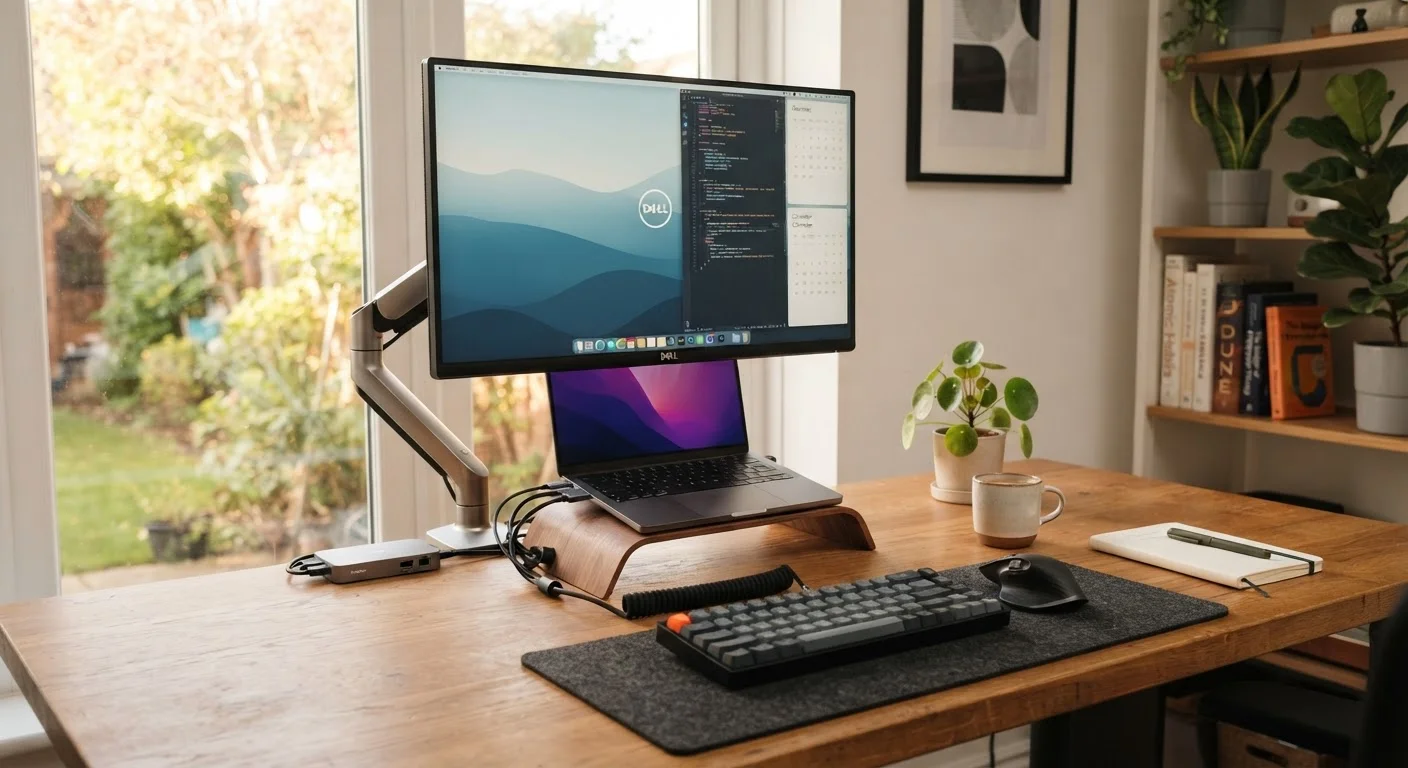
Photo: FaqExplorer.net | Informative Website editorial
Key Takeaways
- A docking station solves port scarcity in one connection, eliminating constant adapter swapping.
- An external monitor is among the highest-impact upgrades for productivity-focused laptop users.
- Ergonomic peripherals address posture and fatigue issues that built-in keyboards and trackpads can't fix.
- Not every accessory adds real value - prioritize add-ons that address a genuine limitation you already feel.
- Understanding which ports your laptop has prevents buying accessories that simply won't work with it.
Why Laptops Have Real Limits - and How Accessories Address Them
A laptop is a deliberate set of trade-offs. Manufacturers compress processing power, storage, and connectivity into a portable chassis, which means something always gets trimmed. Screen size shrinks, ports disappear, and the keyboard travels a fraction of the distance a full-size one does. For many users, those compromises are invisible day-to-day - until they aren't.
The good news is that the accessory market has matured to address nearly every specific gap a laptop creates. The challenge is knowing which gaps are real friction points for you versus which accessories are marketed as must-haves but rarely leave the drawer. If you're weighing whether a laptop even suits your workflow in the first place, our piece on matching the right form factor to how you actually work offers useful framing before you commit to any add-ons.
Below are the accessories worth understanding - what they actually do, what problem they solve, and who genuinely needs them.
External Monitor
A second screen is the single most impactful productivity upgrade available to most laptop users. Working on a 13- or 15-inch display forces constant window-switching and cramped reading. An external monitor - even a modest 24-inch, 1080p panel - eliminates that friction immediately.
For desk-based work, connecting a laptop to an external display and using the laptop screen as a secondary panel effectively gives you a dual-monitor setup. Video editors, writers, spreadsheet-heavy analysts, and anyone who routinely references multiple documents simultaneously will notice the difference within hours. Connection is typically via HDMI, DisplayPort, or USB-C (with DisplayPort Alt Mode support required for the latter). Verify your laptop's output options before purchasing.
A 24-inch external monitor eliminates window-switching friction and effectively creates a dual-screen setup.
Docking Station or USB-C Hub
Modern thin laptops frequently ship with one or two USB-C ports and nothing else. A docking station - sometimes called a hub - plugs into one of those ports and expands it into multiple USB-A ports, an Ethernet jack, HDMI or DisplayPort outputs, an SD card reader, and sometimes a headphone jack, all simultaneously.
The distinction between a hub and a full docking station matters: hubs are compact, bus-powered (they draw power from the laptop), and suited for travel. Docking stations are larger, plug into the wall independently, and can often charge your laptop through the same connection. If you sit at a desk daily and want to plug in once and have everything ready, a powered docking station is the more capable choice. For occasional use on the road, a compact hub covers the bases.
A docking station collapses a tangle of individual adapters into a single, always-ready connection at your desk.
External Keyboard and Mouse
Laptop keyboards are constrained by chassis depth, which limits key travel - the distance a key depresses when pressed. Shallow travel increases typing fatigue and error rates for high-volume typists. An external keyboard, whether membrane or mechanical (a type with individual spring-loaded switches per key), restores the physical feedback many users find essential for sustained work.
Similarly, a trackpad works adequately for casual browsing but becomes limiting for precise tasks like photo editing, spreadsheet navigation, or extended writing sessions. A full-size mouse provides better ergonomic positioning and precision. If wrist or shoulder discomfort is already a concern, a vertical mouse - which positions the hand in a more neutral, handshake-like orientation - is worth exploring, though ergonomic needs vary and any persistent discomfort warrants professional guidance.
External keyboards restore key travel that laptop chassis constraints eliminate, reducing fatigue during long typing sessions.
Laptop Stand
When a laptop sits flat on a desk, the screen is almost always too low for comfortable eye-line alignment. Users compensate by tilting their head down, which places sustained strain on the neck and upper back. A laptop stand raises the screen to a height where the top of the display sits roughly at eye level - the ergonomic target most occupational health guidance points toward.
Stands range from simple folding risers to adjustable multi-angle platforms. Most are passive (no power required). The trade-off: once the laptop is elevated, its built-in keyboard is at an awkward angle, making an external keyboard effectively necessary. For anyone working at a desk for more than a couple of hours a day, the stand-and-external-keyboard combination addresses posture issues the built-in design simply cannot.
Raising a laptop screen to eye level with a stand addresses neck strain that flat-desk positioning creates.
Laptop Cooling Pad
Laptops generate heat and manage it through internal fans and venting, typically on the bottom or sides of the chassis. When that airflow is restricted - by soft surfaces like beds or couches, or simply by demanding workloads in a warm environment - the processor throttles its speed to protect itself from overheating. The result is noticeable performance slowdown during tasks like video rendering, gaming, or large file processing.
A cooling pad is a flat platform with integrated fans that sit beneath the laptop and push additional air toward its vents. It won't dramatically transform performance under normal conditions, but it can meaningfully stabilize sustained performance during intensive tasks and reduce surface temperatures. Users who regularly run demanding workloads or work in warmer environments tend to see the clearest benefit. Our guide to keeping a laptop healthy long-term covers how heat management fits into broader longevity habits.
A cooling pad prevents thermal throttling during sustained intensive tasks, keeping performance stable over longer sessions.
Portable External Storage
Internal storage in laptops - particularly in thinner, entry-to-mid-tier models - is frequently limited to 256GB or 512GB. For users who work with large video files, RAW photography, audio projects, or extensive local software libraries, that ceiling arrives faster than expected. External drives extend capacity without touching the laptop's internals.
Two main types exist: traditional hard disk drives (HDDs), which spin mechanical platters and offer higher capacity at lower cost but are slower and more fragile; and solid-state drives (SSDs), which have no moving parts, transfer data significantly faster, and handle physical handling better. For portable use, an external SSD is the more durable and responsive choice, though HDDs remain practical for archival storage that stays on a desk.
An external SSD is the more practical portable storage choice, combining durability, speed, and compact sizing.
Spend Intentionally, Not Reflexively
The accessories listed here range from near-universal value to highly situational. An external monitor will improve almost any desk-based workflow; a drawing tablet is only useful if you're actually sketching or editing images. The pattern to avoid is buying accessories preemptively, before you've encountered the limitation they solve.
Start With the Friction, Not the Feature List
It's also worth accounting for accessory costs before you purchase a laptop, not after. Thin, port-limited machines often require a docking station to be genuinely functional at a desk, which adds to the real ownership cost. Our guide to hidden laptop ownership costs walks through how these expenses accumulate. And if port availability is a concern, understanding what gets cut on thin laptops explains which connections are commonly sacrificed and why that matters for accessory compatibility.
The content on this site is provided for informational purposes only and should not be considered a substitute for professional advice. While we strive to provide accurate and up-to-date information, we make no guarantees regarding its completeness or accuracy. Always consult a qualified professional for advice specific to your circumstances before making any decisions.