
Laptop vs. Desktop: Matching the Right Form Factor to How You Actually Work

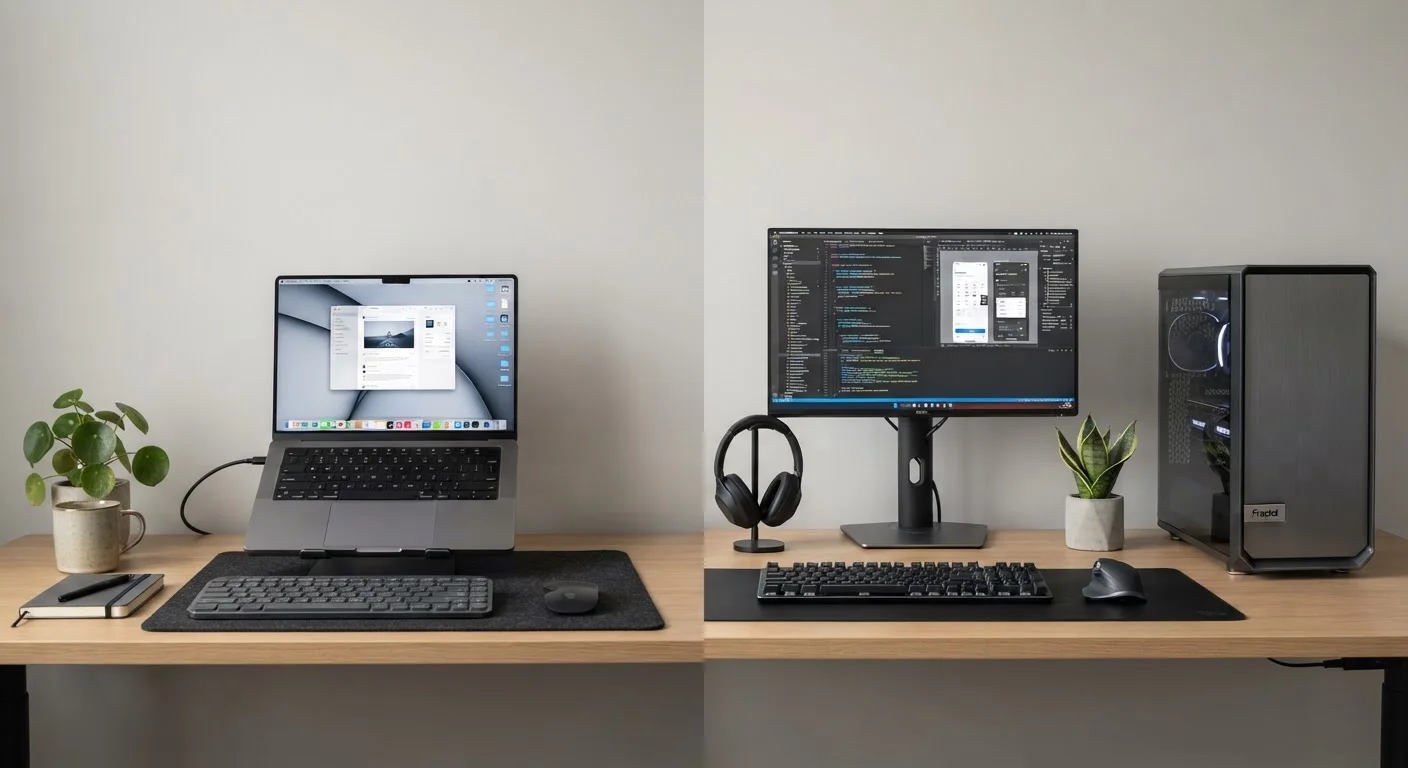
Photo: FaqExplorer.net | Informative Website editorial
Key Takeaways
- Laptops trade raw performance and upgradability for portability and convenience.
- Desktops generally deliver more computing power per dollar at equivalent price points.
- Laptop components - especially batteries and RAM - are often soldered in and cannot be upgraded.
- Desktops require separate purchases for a monitor, keyboard, and mouse, which add to total cost.
- Your actual workflow - not the spec sheet - should drive the form-factor decision.
- Many users find a desktop-plus-tablet or docked-laptop setup addresses both needs effectively.
The Core Trade-Off: Mobility vs. Capability
Every decision between a laptop and a desktop comes down to one fundamental question: where do you actually do your work? If the answer is always the same room, a desktop almost always delivers more value. If the answer changes daily, a laptop's self-contained design removes real friction from your routine.
Laptops integrate the display, keyboard, trackpad, battery, and computer into a single unit. That integration is impressive engineering - but it forces compromises. To fit everything into a slim chassis, manufacturers use lower-wattage processors, smaller cooling systems, and in many cases permanently solder RAM and storage to the motherboard. You may not be able to add memory two years from now even if you want to.
Desktops have no such constraints. Components sit in a ventilated case with room for airflow, which means processors and graphics cards can run at higher performance levels for longer periods without throttling (automatically reducing speed to manage heat). When a part becomes outdated, you replace it rather than the whole machine. For users doing CPU-intensive tasks like video encoding, 3D modeling, or running local development environments, this matters in day-to-day use - not just benchmarks.
For more on how graphics performance fits into this picture, see our guide on integrated vs. dedicated graphics.
What the Specs Don't Tell You About Price
Comparing price tags between laptops and desktops can mislead. A desktop listed at $700 needs a monitor, keyboard, and mouse to be usable - easily adding $150-$300 to the real cost. A laptop at $700 is ready to use immediately. Factor in total cost of ownership, not just the box price.
| Criterion | Laptop | Desktop |
|---|---|---|
| Portability | Fully portable, battery-powered | Stationary, requires power outlet |
| Performance per dollar | Lower - heat and size limit components | Higher - no thermal or size constraints |
| Upgradability | Limited; often RAM/storage are soldered | High; RAM, storage, GPU replaceable |
| Total setup cost | Ready to use out of the box | Add monitor, keyboard, mouse (~$150-$300) |
| Lifespan / repairability | Battery degrades; repairs can be costly | Parts more accessible; longer useful life |
| Display flexibility | Built-in screen; external monitor optional | Choose any monitor size and configuration |
| Ergonomic control | Limited without external peripherals | Full choice of input devices and setup |
Storage type also affects the experience significantly regardless of form factor. Both laptops and desktops increasingly ship with SSDs (solid-state drives) as standard, which dramatically improves startup and application load times compared to older spinning hard drives. Our SSD vs. HDD guide breaks down what that difference means in real use.
Laptops also accumulate hidden ongoing costs. Batteries degrade over time and eventually need replacement - a service that can be expensive or difficult depending on the model. Thin laptops frequently sacrifice ports in the interest of slimmer profiles, which means adapters and docks become necessary purchases. Our article on hidden laptop ownership costs covers these expenses in detail.
Ergonomics, Peripherals, and the Docking Station Middle Ground
One underappreciated advantage of desktops is ergonomic flexibility. You choose your monitor size and height, your keyboard layout, and your mouse. Laptop users who work at a desk for long hours often end up buying an external monitor, keyboard, and mouse anyway - effectively recreating a desktop setup while also paying the laptop premium.
A docking station (a single cable that connects a laptop to a full array of peripherals) addresses this by letting the same laptop serve as both a portable device and a full desk setup. This hybrid approach suits many professionals well, though port limitations on thin laptops can complicate compatibility. Not every laptop supports every docking standard.
~60%
Share of US PC shipments that are laptops
Industry analysts have consistently tracked laptops as the majority of consumer PC shipments in the US, reflecting strong demand for portable computing.
2-4 years
Typical laptop battery lifespan before capacity degrades
Most lithium-ion laptop batteries lose meaningful charge capacity within two to four years of regular daily use, according to general manufacturer guidance.
15-30%
Typical performance gap between laptop and desktop chips at same tier
Processor manufacturers publish separate desktop and mobile chip lines; mobile variants are power-limited, resulting in measurable throughput differences on sustained workloads.
If a docked laptop setup sounds appealing, our coverage of laptop accessories that extend functionality outlines which add-ons solve real problems versus those that are mostly marketing. And once you've settled on a form factor, the operating system choice is the next meaningful decision - our Windows vs. macOS vs. ChromeOS comparison can help you think through that.
The content on this site is provided for informational purposes only and should not be considered a substitute for professional advice. While we strive to provide accurate and up-to-date information, we make no guarantees regarding its completeness or accuracy. Always consult a qualified professional for advice specific to your circumstances before making any decisions.