
RAM, Storage, and Processing Power: What Those Numbers Actually Mean

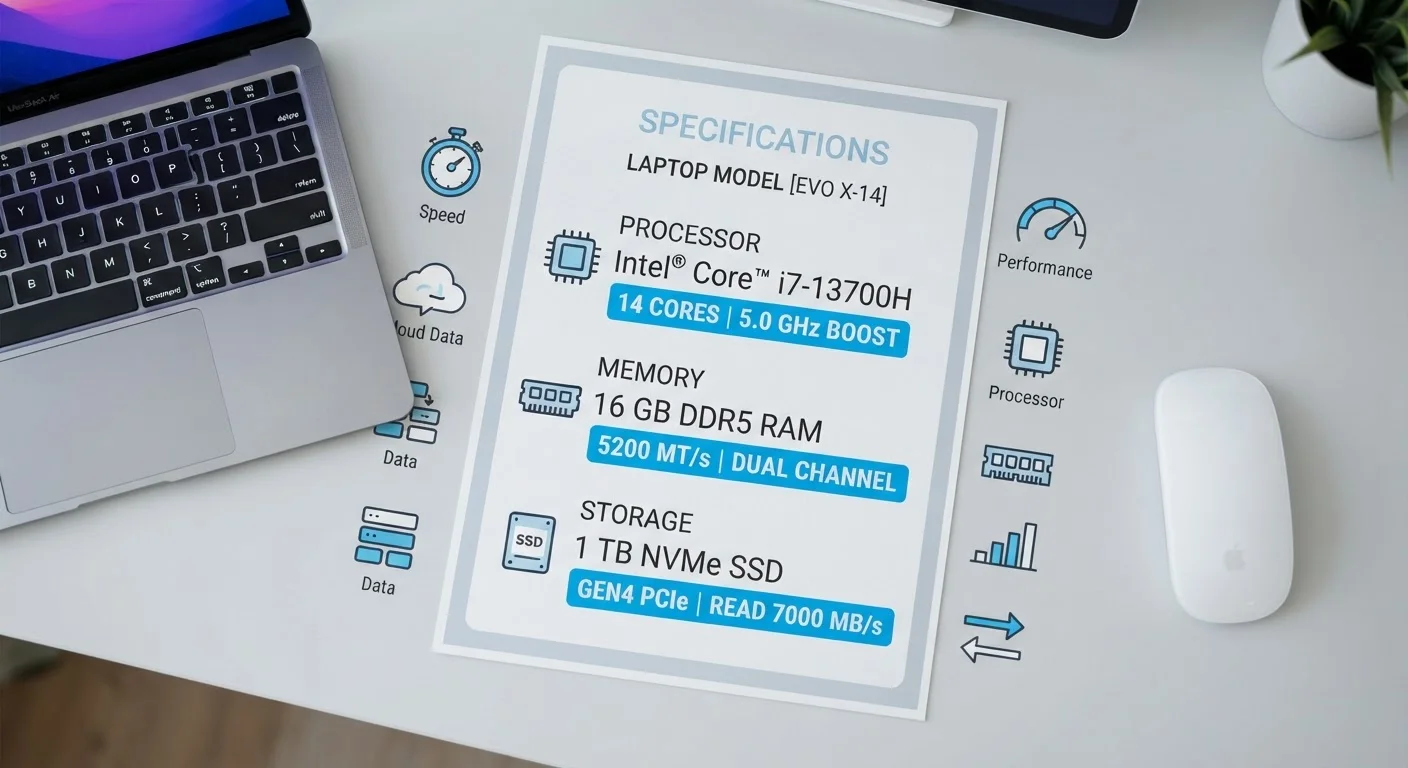
Photo: FaqExplorer.net | Informative Website editorial
Key Takeaways
- RAM affects how many tasks your computer handles simultaneously without slowing down.
- Storage capacity and type (SSD vs. HDD) both affect how quickly your device loads files and apps.
- A higher GHz number does not automatically mean a faster processor - architecture and core count matter too.
- For most everyday users, matching specs to actual usage patterns matters more than chasing the highest numbers.
- These three specs work together; a bottleneck in any one can limit the others.
Why Spec Numbers Feel Confusing - and How to Cut Through Them
Walk into any electronics retailer or scroll through an online listing, and you'll be greeted by a wall of numbers: 16GB RAM, 512GB SSD, 3.5GHz, 8 cores. These figures are genuinely meaningful - but only if you know what each one does in the real world. Without that context, it's easy to fixate on the biggest number rather than the most relevant one.
The goal here isn't to turn you into a hardware engineer. It's to give you a working mental model of what RAM, storage, and processing power each control - so you can match those specs to how you actually use a computer. For a broader reference across all spec sheet terms, the PC spec sheet glossary is a useful companion to bookmark.
~3-5×
Speed difference: SSD vs. HDD sequential reads
SATA SSDs typically deliver sequential read speeds of 500-600 MB/s compared to 80-160 MB/s for most consumer HDDs, based on widely published drive benchmarks.
16GB
RAM increasingly considered the practical baseline
Industry analysts and device manufacturers have begun positioning 16GB as the new recommended minimum for modern operating systems and multitasking workloads as of the mid-2020s.
10-15%
Typical generation-over-generation CPU performance gain
Processor manufacturers commonly report double-digit performance improvements per architecture generation in their technical documentation, though real-world gains vary by workload.
RAM: Your Computer's Short-Term Workspace
Think of RAM as your desk surface. The bigger the desk, the more projects you can spread out and work on simultaneously. When you open a browser with 15 tabs, launch a spreadsheet, and keep a music app running in the background, all of that activity competes for RAM. Run out, and your computer starts shuffling tasks to slower storage - which is when you notice lag.
For most users browsing the web, streaming content, and handling documents, 8GB is a reasonable minimum today. 16GB is a comfortable amount for multitaskers and anyone running heavier software. The type and speed of RAM also matters - DDR5 is faster than DDR4, for example - but capacity tends to have a more noticeable day-to-day impact for general users.
One important caveat: RAM is temporary. Everything in it disappears when you shut down. It is not where your files live - that's storage's job.
Storage: Capacity vs. Speed - Both Matter
Storage is your computer's filing cabinet: it holds your operating system, applications, photos, videos, and documents whether the machine is on or off. Two numbers define it - capacity (how much fits) and type (how fast you can access it).
The type distinction is critical. HDDs (Hard Disk Drives) use spinning magnetic platters and are slower - boot times and file transfers take longer. SSDs (Solid State Drives) use flash memory with no moving parts, loading apps and files dramatically faster. An older machine upgraded from an HDD to an SSD often feels like a different computer.
Within SSDs, form factor and interface matter too. NVMe M.2 drives are faster than SATA SSDs, though the difference is most noticeable in tasks involving large file transfers. For everyday use like loading applications, the gap between SATA and NVMe SSDs is less pronounced than the gap between any SSD and an HDD.
As for capacity, 256GB is tight for most users. 512GB works for moderate needs. If you store large media libraries locally, 1TB or more is worth considering.
Processing Power: What GHz, Cores, and Architecture Actually Mean
The CPU (Central Processing Unit) is the brain of your computer - it executes instructions for every task, from rendering a webpage to running a video call. Three aspects of a CPU spec matter most: clock speed, core count, and generation.
Clock speed, measured in GHz, tells you how many instruction cycles the processor completes per second. Higher is generally faster within the same processor family, but a newer-generation chip at a lower GHz can easily outperform an older design at a higher one. This is one of the most common misunderstandings among first-time buyers - our article on processor performance myths goes deeper on exactly this point.
Core count describes how many independent processing units the chip contains. More cores allow a CPU to handle multiple tasks simultaneously. For everyday productivity, 4-6 cores is generally more than adequate. Video editing, 3D rendering, and heavy software compilation can benefit from 8 or more.
Generation and architecture are perhaps the most underappreciated factors. A newer processor architecture from the same manufacturer often delivers meaningfully better performance and energy efficiency than a higher clock-speed model from a previous generation. When comparing chips, check the generation alongside the spec numbers - not just the headline GHz figure.
These three specs - RAM, storage, and CPU - don't operate in isolation. A powerful processor paired with too little RAM will bottleneck under load. Fast RAM won't help much if the CPU is outdated. Understanding how they interact helps you spot when a device is well-balanced for your needs versus when one spec is inflating the marketing appeal while others fall short. For more on how mobile chips handle these same trade-offs, see our piece on phone processor misconceptions.
Match Specs to Your Actual Workload
Frequently Asked Questions
The content on this site is provided for informational purposes only and should not be considered a substitute for professional advice. While we strive to provide accurate and up-to-date information, we make no guarantees regarding its completeness or accuracy. Always consult a qualified professional for advice specific to your circumstances before making any decisions.