
SSD vs. HDD: The Storage Decision That Shapes How Your Computer Feels to Use

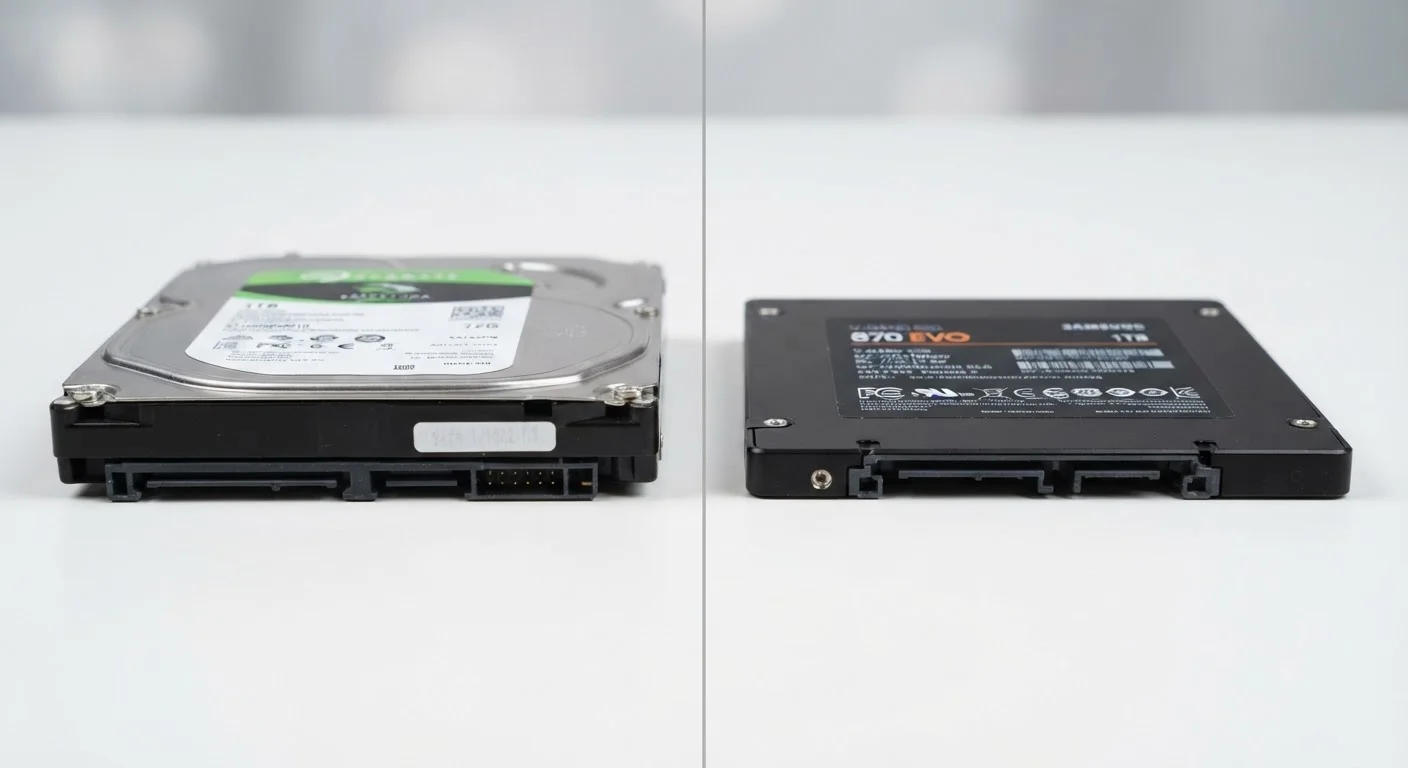
Photo: FaqExplorer.net | Informative Website editorial
Key Takeaways
- SSDs use flash memory with no moving parts; HDDs use spinning magnetic platters to read and write data.
- SSDs are significantly faster than HDDs, with real-world boot and load time differences users notice immediately.
- HDDs typically offer more storage per dollar, making them common in backup and archival roles.
- SSDs are more resistant to physical shock and drops because they contain no mechanical components.
- Many desktop computers use both: an SSD for the operating system and an HDD for bulk file storage.
What Each Drive Actually Does
Both SSDs and HDDs store your data permanently - meaning your files, operating system, and applications remain saved even when the computer is powered off. But the way they accomplish this couldn't be more different.
An HDD (Hard-Disk Drive) stores data on rapidly spinning magnetic platters. A mechanical arm, similar in concept to a record needle, moves across the surface to read and write information. The faster the platters spin - measured in RPM (revolutions per minute) - the quicker the drive can retrieve data. Consumer HDDs typically spin at 5,400 or 7,200 RPM.
An SSD (Solid-State Drive) has no moving parts at all. It stores data in flash memory chips - the same underlying technology used in USB thumb drives, just faster and more sophisticated. Because there's nothing mechanical to move, an SSD can access any piece of data almost instantly, regardless of where it's physically located on the chip.
Understanding this fundamental difference explains almost every real-world trade-off between the two. For a broader look at how storage fits alongside other key specs, see this plain-language breakdown of laptop specs.
| Criterion | SSD | HDD |
|---|---|---|
| Technology | Flash memory, no moving parts | Spinning magnetic platters |
| Typical boot time | Under 15 seconds | 30-60+ seconds |
| Cost per gigabyte | Higher | Lower |
| Durability (shock resistance) | High - no mechanical parts | Lower - vulnerable to drops |
| Noise | Silent | Audible clicking or spinning |
| Power consumption | Lower - better battery life | Higher - more heat and draw |
| Ideal use | OS, apps, everyday performance | Bulk storage, backups, archives |
Speed, Durability, and Cost: The Real-World Trade-Offs
Speed is where the difference becomes tangible. A system running on an SSD typically boots Windows or macOS in under 15 seconds. The same system with an HDD often takes 30-60 seconds or longer, depending on age and drive condition. Application launches, file transfers, and browser performance all follow the same pattern - SSDs are consistently and perceptibly faster in daily use.
Durability favors SSDs, particularly in laptops. Because HDDs contain spinning platters and a moving read/write arm, a sharp knock or drop while the drive is active can cause physical damage - and data loss. SSDs withstand vibration and impact far better, since there are no components that can collide or scratch. This is one reason virtually all modern thin-and-light laptops ship with SSDs as standard.
Cost per gigabyte is where HDDs remain competitive. A 2TB HDD can cost considerably less than a 2TB SSD, making traditional drives attractive for storing large media libraries or local backups where access speed is less important. If you're weighing storage needs alongside form factor decisions, this guide to laptops vs. desktops covers how storage choices interact with portability trade-offs.
~5×
Typical SSD speed advantage over HDD
Sequential read speeds for consumer SSDs commonly exceed 500 MB/s, while standard 7,200 RPM HDDs typically reach around 100-150 MB/s.
~$0.03-0.05
Approximate HDD cost per gigabyte
HDD pricing per gigabyte has remained significantly lower than SSDs, though the SSD price gap has narrowed considerably over the past decade.
One useful framing: treat your SSD as your workspace and your HDD as your filing cabinet. Speed matters most where you work; capacity matters most where you store.
Which Storage Type Belongs in Your Next Computer?
For most everyday computing - web browsing, email, streaming, word processing, and light photo editing - an SSD is the single upgrade most likely to make a computer feel dramatically faster. If you've ever sat watching a loading spinner on an older machine, a storage upgrade is almost always the reason why.
If you're handling large volumes of media - thousands of raw photos, hours of video footage, or extensive local backups - an HDD's price-per-gigabyte advantage makes it worth considering as supplemental storage, even if your primary drive is an SSD. Many desktop builds use exactly this combination.
It's also worth noting that storage type is separate from storage amount. Confusing the two is a common mistake - if that distinction feels fuzzy, this article on storage vs. RAM clarifies both concepts clearly.
Finally, your operating system matters too. Some operating systems are optimized to take full advantage of SSD speeds, while others handle the transition more gradually. Choosing the right OS is a worthwhile parallel consideration when configuring a new machine.
NVMe vs. SATA: An SSD Sub-Distinction Worth Knowing
The content on this site is provided for informational purposes only and should not be considered a substitute for professional advice. While we strive to provide accurate and up-to-date information, we make no guarantees regarding its completeness or accuracy. Always consult a qualified professional for advice specific to your circumstances before making any decisions.